Prime Market — Access via Tor
This guide covers everything from installing Tor Browser to making your first deposit. If you've never used a darknet market before, start here. If you're stuck at a specific step, skip to that section.
What You Need
Before you start, you need two things: Tor Browser (free, from the Tor Project) and some Bitcoin or Monero in a local wallet you control. That's it. No VPN required (Tor handles routing), no account verification beyond a CAPTCHA, no email address.
Step 1 — Install Tor Browser

- Download Tor Browser from torproject.org/download. Don't download from anywhere else — only the official site.
- Verify the signature if you're security-conscious. The download page provides a .asc signature file and instructions for checking it against the developer keys.
- Install and open Tor Browser. Click Connect on the splash screen. The browser will build a Tor circuit — usually takes 10–30 seconds.
- Keep Tor Browser updated. Security patches matter here. The browser will prompt you when updates are available.
Step 2 — The Official Onion URL
Prime Market's verified onion address is:
http://primeazlozdecj746nw7anc7vpcaz3pqltbjm4slxx6y6g4r3tel35qd.onion/
Copy this directly from the banner at the top of this page. Paste it into Tor Browser's address bar and press Enter. You'll see a page with two CAPTCHAs before the login form loads — solve them both. This is the market's anti-bot screening, not a glitch.
The clearnet mirror at primemarket.link can be accessed without Tor but provides much weaker privacy. Use the .onion address whenever possible.
Step 3 — Create Your Account
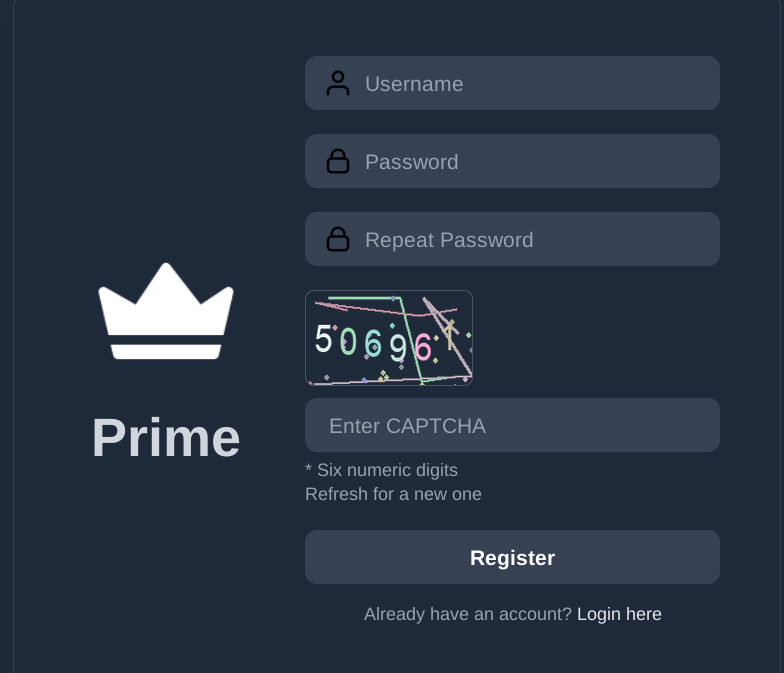
- On the login page, click Sign Up Now below the login form.
- Choose a username — pick something that has no connection to your real identity. Don't reuse usernames from other services.
- Enter a strong password, then enter it again to confirm. The market checks both entries match.
- Complete the CAPTCHA and click Sign Up.
- On success, the market shows your Account Secret (a single word) and your mnemonic key/phrase. Write both down on paper, right now, and store them offline.
Step 4 — Signing In
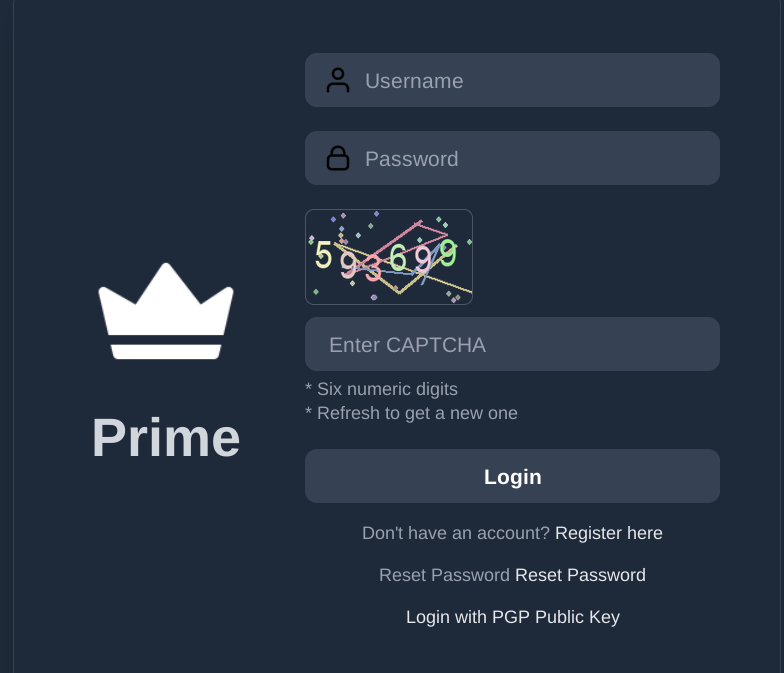
The login form requires three things: your username, your Account Secret (the word from registration), and your password. Fill all three, complete the CAPTCHA, and click Sign In.
If the page shows an error, double-check the Account Secret — it's case-sensitive and easy to mistype. Also make sure you're on the correct onion URL (not a phishing copy).
Step 5 — PGP Setup
PGP (Pretty Good Privacy) encryption protects your communications with vendors — shipping address, tracking info, and order messages are all encrypted with the vendor's public key so only they can read them.
| User type | PGP requirement |
|---|---|
| Buyers | Strongly recommended — lets vendors send encrypted tracking |
| Vendors | Required to complete setup and start selling |
Generate a key pair using Kleopatra (Windows/Linux), GPG Tools (macOS), or GPG on the command line. Export your public key as ASCII armor and paste it into your profile settings on the market. Keep your private key on an encrypted offline device.
Step 6 — Your First Deposit
Go to the wallet section via the icon in the top navigation. Click Request New Address. You'll get a deposit address valid for 6 hours. Send BTC or XMR from your local wallet — not an exchange — to this address.
Your balance will update within about 20 minutes of the required confirmations (1 for BTC, 2 for XMR). Once funded, you're ready to browse listings and place orders.